Collaborate with agents using marimo pair
Use the marimo pair CLI to connect coding agents to running marimo notebooks.
marimo pair is the recommended way to collaborate on marimo notebooks with agents. It lets your agent read variables, test logic in a scratchpad, run cells, add and remove cells, and even manipulate UI elements.
Quickstart
- Start a notebook:
- Open the notebook actions menu and select Connect your agent.
- Select Claude, Codex, or OpenCode and run the copied command in your terminal.
To use an existing agent conversation, select Prompt and paste the copied text into that conversation. The dialog includes the notebook target and authentication instructions.
Your agent can execute code without enabling agent messages.
Run uvx marimo@latest pair --help for the available commands.
Receive notebook messages in your agent
Agent messages let you send notebook errors to a connected conversation. This preview requires host support on the marimo server. Agent connections require a saved notebook inside the server project.
Start the server with:
If the server is already running, restart it with this setting. Then open Connect your agent and follow the dialog instructions.
Supported agents have these requirements:
| Agent | Requirement |
|---|---|
| Codex | A native session with the shared daemon and codex queue support. |
| Claude Code | A native inbox session on macOS or Linux. |
| OpenCode | Version 2.x on macOS or Linux, with its native local service running. |
To connect an existing conversation manually, find the saved notebook ID:
Ask the agent to run this command through its own shell tool:
Use the server URL printed by marimo.
In a development checkout, use the backend URL rather than the Vite frontend URL.
For authenticated notebook discovery, pass --token-file with the path to a file containing the editor token.
The notebook footer shows connected agents. Use the send action on an error to share its captured source and traceback. To end delivery, select the disconnect icon in the footer and confirm Disconnect?. The agent conversation and notebook kernel keep running.
Cloud sandbox with molab
You can also connect to marimo notebooks running on molab. This gives you a free sandbox for your agent and also makes it easy to share your work afterwards.
To connect an agent, start a notebook on molab and open the actions panel in the upper right corner. Select the option to pair with an agent.
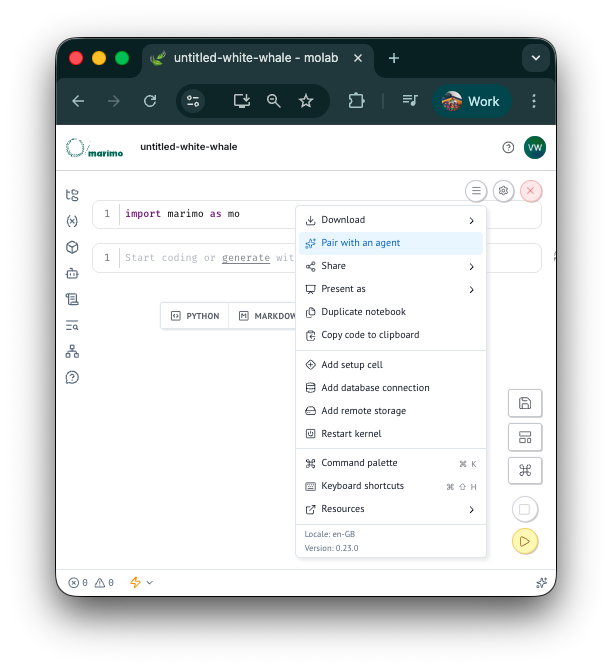
Follow the dialog instructions to connect your local agent. Use your agent from the terminal to edit and run cells in the molab notebook.